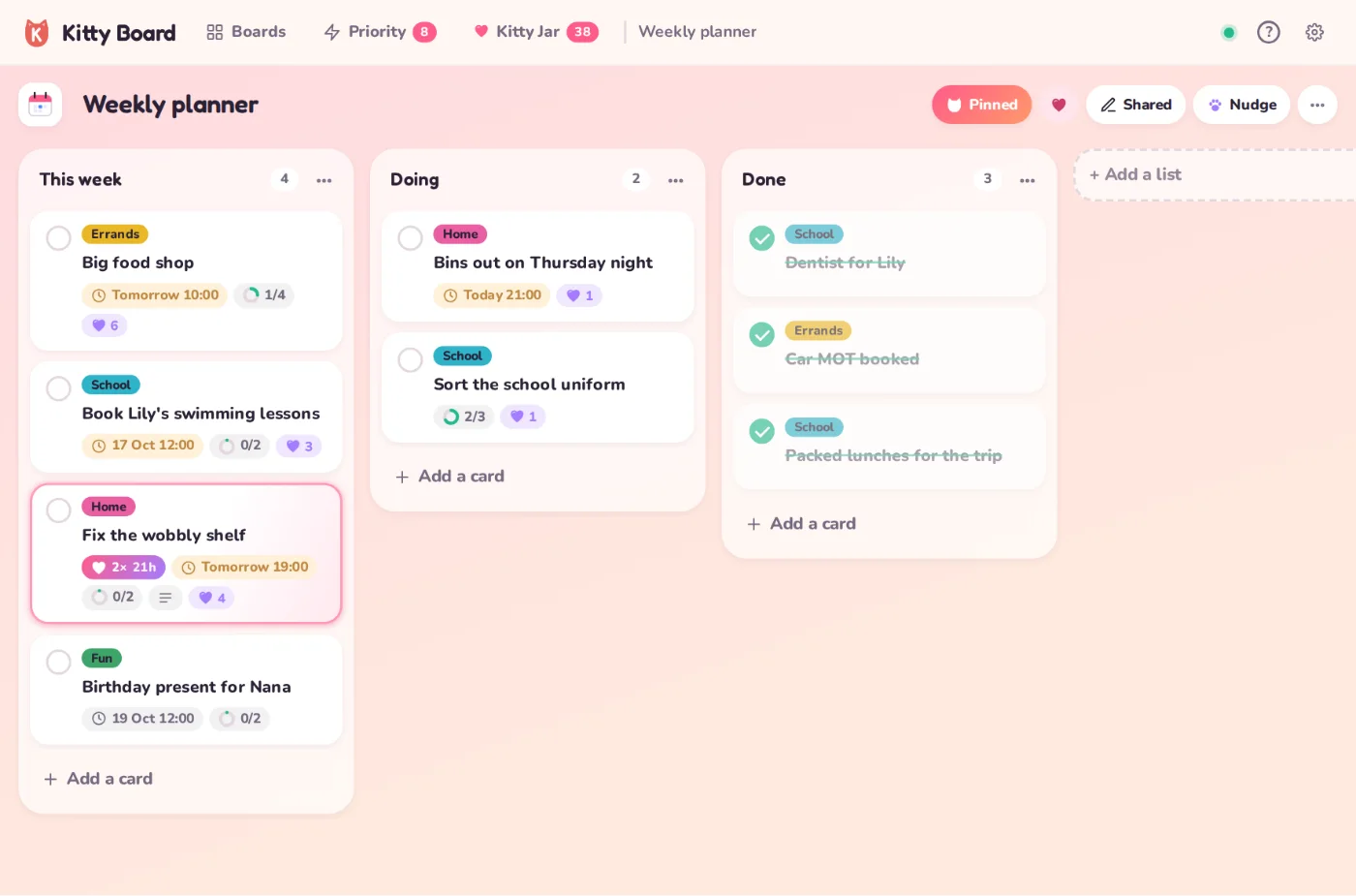
A board is one project: a party, the house, school stuff. Lists run across it (say To do, Doing, Done) and cards sit in the lists.
Make a board
- On your home screen, tap New board.
- Give it a name, an icon and a colour. Tick Rewards if you want hearts on its jobs.
- Start blank (To do, Doing, Done), from a starter, or let Help me build it.
Add and move cards
- Tap Add a card at the bottom of a list, type, and press Enter. Keep typing to add the next one.
- Drag a card to another list, or open it and use Move. On a phone, press and hold to drag.
- Tap the circle on a card to tick it done. Ticking a card with open tasks asks whether to tick those too.
Inside a card
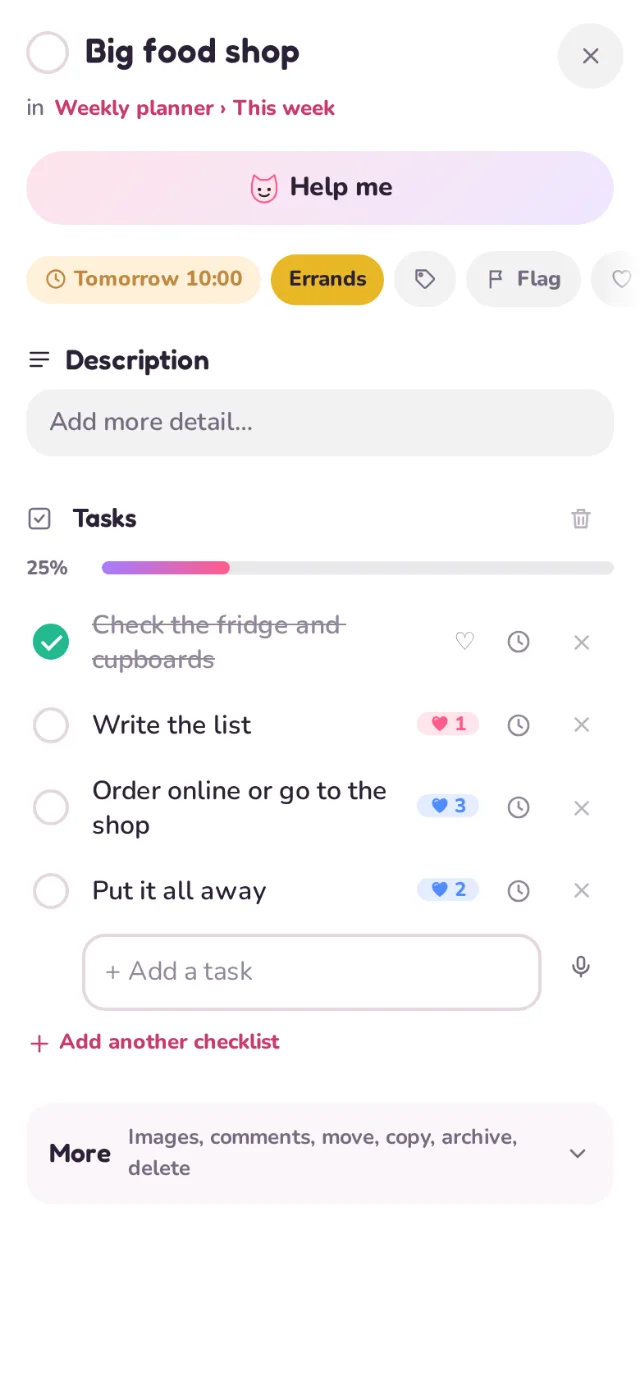
- Tasks: the little steps you tick off one by one, with a progress bar.
- Due dates on the card or on each task. They show up in Today and Priority; overdue turns red.
- Categories: coloured labels such as School, Errands or Urgent.
- Description, comments and photos under More.
- Flag a card to mark it as important.
Priority and Today
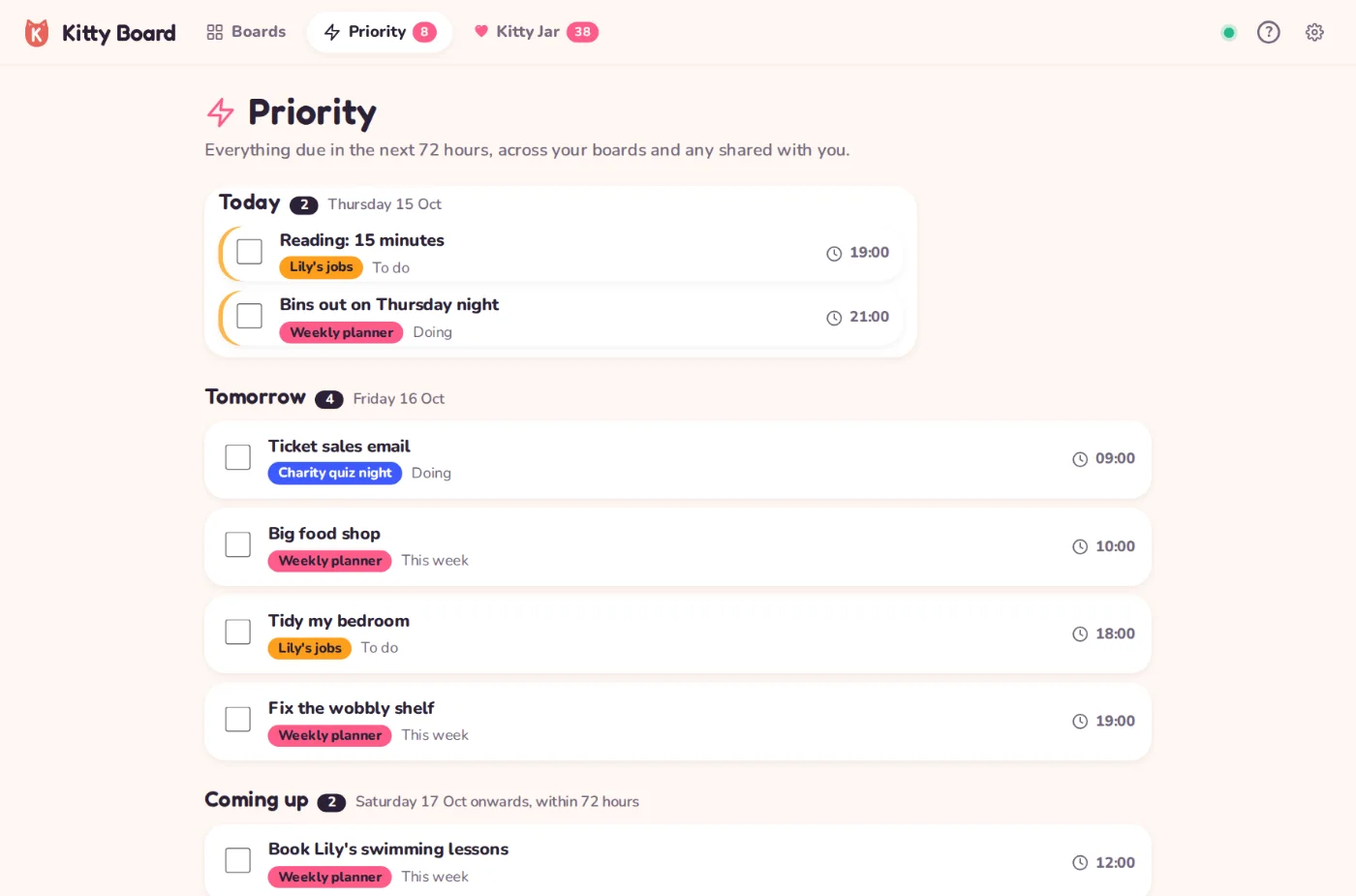
Priority gathers every card and task due in the next 72 hours (and anything overdue) from all your boards. Today, on the home screen, shows just today.
Pin, filter, archive
- Pin a board with the cat ears to keep it at the top of your home screen. Pins are personal; your partner's stay their own.
- Filter a board by words, category, due date or flagged cards, and hide done cards.
- Archive cards, lists and boards you've finished with. Nothing is lost; you can bring them back.